
Screen & Notification Dimmer Docs › User Guide
User Guide
Everything Screen & Notification Dimmer can do, and how to set it up.
Getting started
- Install Screen & Notification Dimmer from Google Play and open it
- Turn on Display over other apps when asked - Screen & Notification Dimmer needs this to draw its dark layer over your screen
- Back on the home screen, pick a level or drag the slider to start dimming
No account, sign-up or login is needed.
The home screen
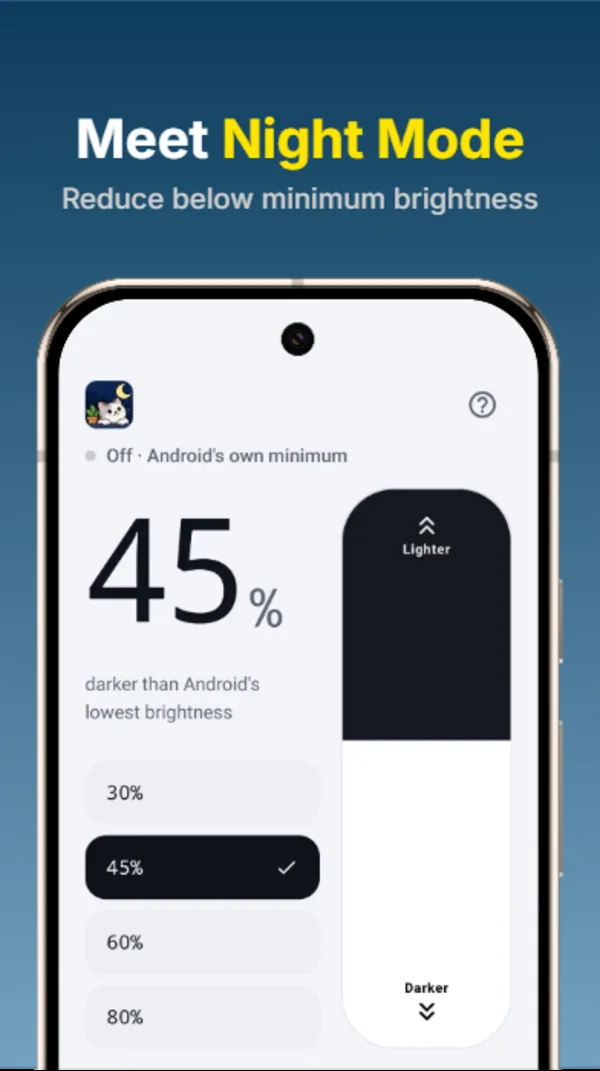
The home screen shows everything at a glance:
- Status line - for example “Off · Android’s own minimum” when dimming is off
- Large percentage - how much darker than Android’s lowest brightness the screen is
- Quick levels - 20, 40, 60 and 80, or your first four presets once you have saved some
- Vertical slider - slide towards Darker or Lighter to fine-tune the level
- Help icon - top right, for help inside the app
Choosing a level
| Level | When to use it |
|---|---|
| 20 | A gentle start. Good for the first night or a dim lamp-lit room |
| 40 | Reading in bed with the lights off |
| 60 | A dark room where even the lowest brightness feels harsh |
| 80 | Very dark rooms, or sharing a bed with someone who is asleep |
These are suggestions. Every phone panel is different, so move the slider until the screen feels right.
Slider bar and edge slider (Pro)
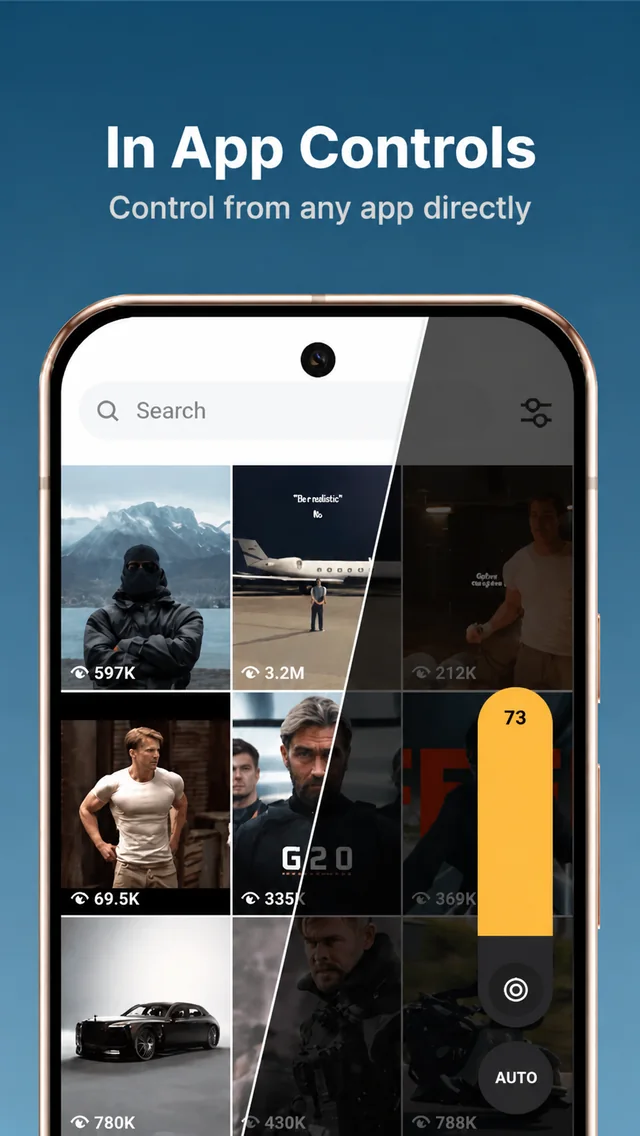
A volume-style bar appears over the app you are using, so you can adjust dimming without leaving it. Open it from the slider tile, or slide along the screen edge with the edge slider. Both are Pro, or free for 12 hours with one ad. The bar has:
- a vertical slider with the current level at the top
- a moon / power button to switch dimming off
- an AUTO button that turns on Auto-Dim
The notification
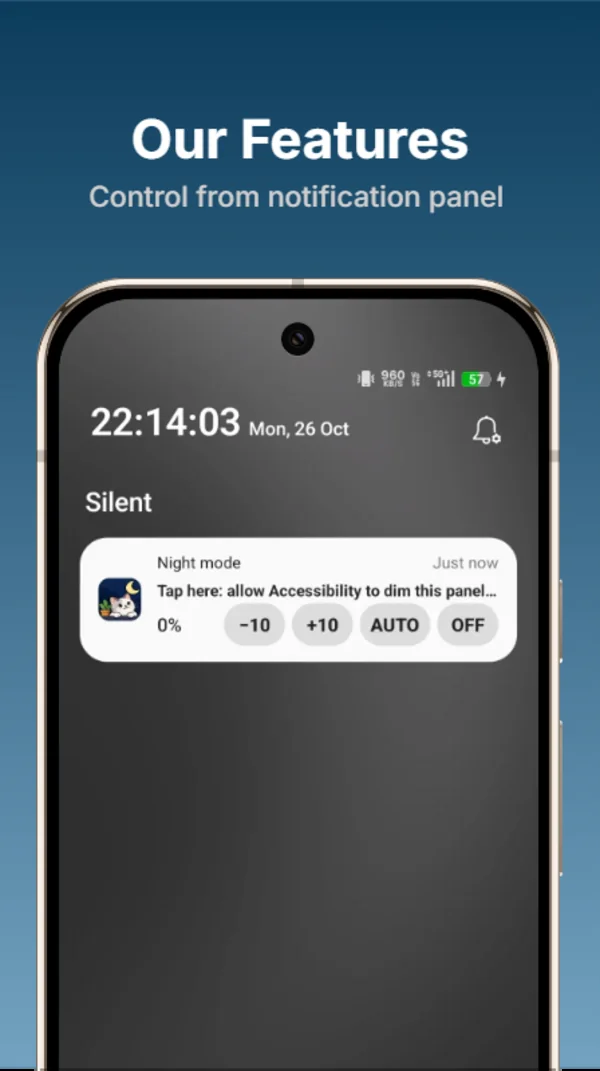
Screen & Notification Dimmer shows a notification with the current level and four buttons:
| Button | What it does |
|---|---|
| −10 | Makes the screen 10 points lighter |
| +10 | Makes the screen 10 points darker |
| AUTO | Turns Auto-Dim on or off (Pro) |
| OFF | Turns dimming off straight away |
If the notification shows “Tap here: allow Accessibility to dim this panel”, tap it to enable the optional Accessibility service. With Dim notification bar on (Pro, or 12 hours with an ad), Screen & Notification Dimmer then dims the notification panel itself.
Quick Settings tiles
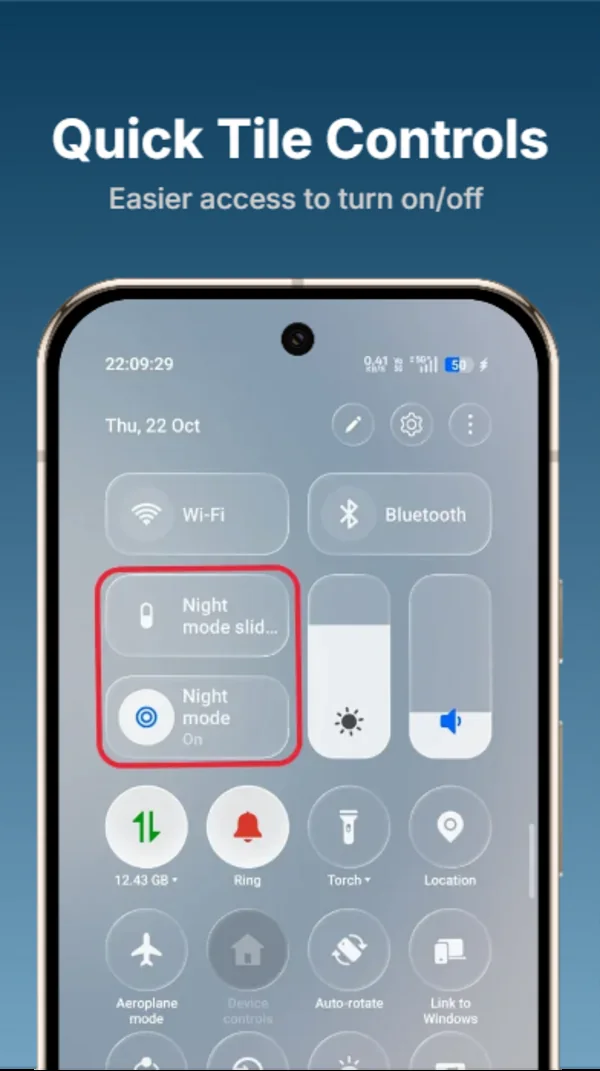
Screen & Notification Dimmer adds two tiles to your Quick Settings panel:
- Screen & Notification Dimmer - one tap to turn dimming on or off, and it shows its current state
- Screen & Notification Dimmer slider - opens the dimming bar over whatever you are doing (Pro)
To add them, swipe down twice from the top of the screen, tap the edit (pencil) icon, then drag the dimmer tiles into your active tiles. The exact steps vary a little between phone makers.
Emergency off
If the screen ever gets too dark to see, use any of these:
- Shake the phone - off by default; turn it on in Settings > Emergency escape
- Tap OFF in the Screen & Notification Dimmer notification
- Switch off the Quick Settings tile
- Press Volume Up and Volume Down together - off by default; turn it on in Emergency escape (needs the optional Accessibility service)
Learn the levels first
Turn on one of the blind escapes first, then start at 20 or 40 and work upwards. You will quickly learn how dark each level is on your phone.
Permissions
| Permission | Required? | What it is used for |
|---|---|---|
| Display over other apps | Required | Draws the dark layer over the screen. Dimming cannot work without it |
| Accessibility service | Optional | Dimming the status bar, notification shade and keyboard; volume-button emergency shortcut; per-app levels; Auto-Dim |
Screen & Notification Dimmer does not need an account. The dimmer itself runs on the overlay permission alone, so you can leave Accessibility off and everything else still works.
Free and Pro
| Free | Pro | |
|---|---|---|
| Dimming below minimum brightness | Yes | Yes |
| Quick levels and slider | Yes | Yes |
| Bedtime schedule and Dim for timer | Yes | Yes |
| Notification buttons and Quick Settings tiles | Yes | Yes |
| Emergency off (shake, Volume Up + Down) | Yes | Yes |
| Edge slider and Screen & Notification Dimmer slider tile | 12 h per ad | Yes |
| Auto-Dim (Android 11+) | 12 h per ad | Yes |
| Dim the notification bar, status bar and keyboard | 12 h per ad | Yes |
| Per-app levels | 12 h per ad | Yes |
| Colour filters, presets, keep after restart | 12 h per ad | Yes |
| Ads | Only if you tap Watch an ad | None |
Pro is bought through Google Play, as a weekly subscription or a one-time lifetime purchase (prices by country are on Free vs Pro), and is tied to your Google account. "12 h per ad" means one short ad unlocks that feature for 12 hours; three ads within 12 hours unlock all of Pro. See Free vs Pro.
Tips for using it at night
- Combine Screen & Notification Dimmer with Android’s dark mode so white apps do not glare
- Lower the system brightness to its minimum first, then add Screen & Notification Dimmer on top
- Keep the notification enabled so the OFF button is always one tap away
- Screen & Notification Dimmer is a screen dimmer, not a medical device
Last updated: 25 November 2026