
Screen & Notification Dimmer Docs › Features › Notification controls
Control dimming from the notification and Quick Settings
Short answer
While dimming is on, Screen & Notification Dimmer shows a notification with four buttons: −10 (lighter), +10 (darker), AUTO (Auto-Dim) and OFF. Pull down the shade and tap; you never need to open the app. There is also an on/off tile for Quick Settings. The notification buttons and the on/off tile are free.
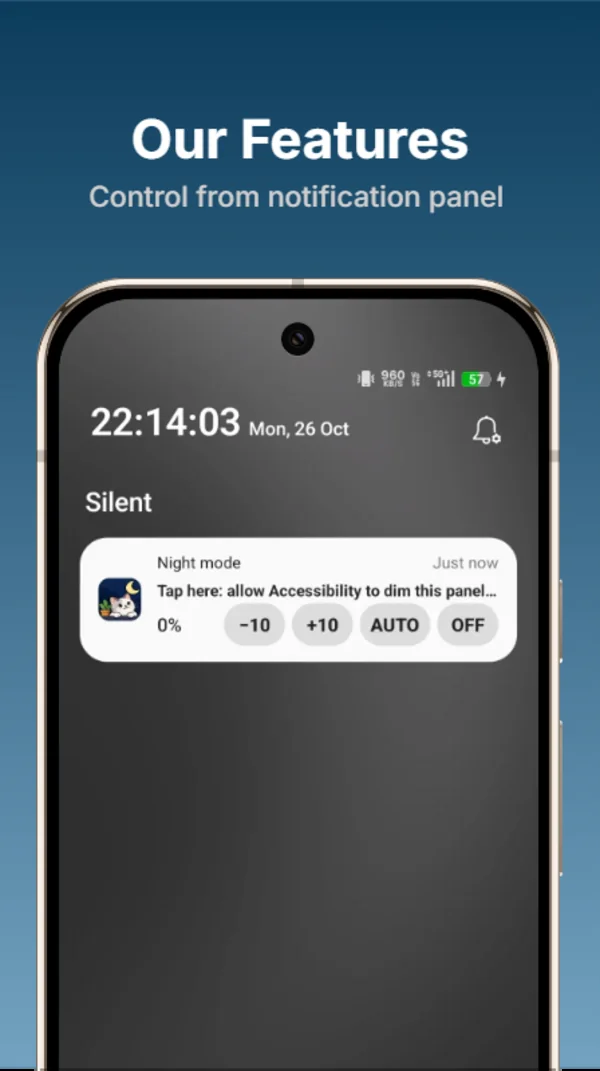
Most of the time you want to change dimming while doing something else, such as reading or watching. The notification is the one place that is always a swipe away, so the controls belong there.
The notification buttons
| Button | What it does | Free? |
|---|---|---|
| −10 | Makes the screen 10 points lighter | Free |
| +10 | Makes the screen 10 points darker | Free |
| AUTO | Turns Auto-Dim on or off | Pro, or 12 h with an ad |
| OFF | Switches dimming off at once | Free |
The title shows the level, for example "Dimming on - 40%". You can hide the buttons in the app's settings if you would rather have a plain status notification.
Keep notifications allowed
On Android 13 and newer, apps must ask before showing notifications. If you tapped "Don't allow", the buttons can't appear. Turn notifications back on in the app ("Turn on notifications to dim from the shade") or in Android Settings > Apps > Screen & Notification Dimmer > Notifications. The notification is also the most reliable way to switch dimming off, so it is worth keeping.
Quick Settings tiles
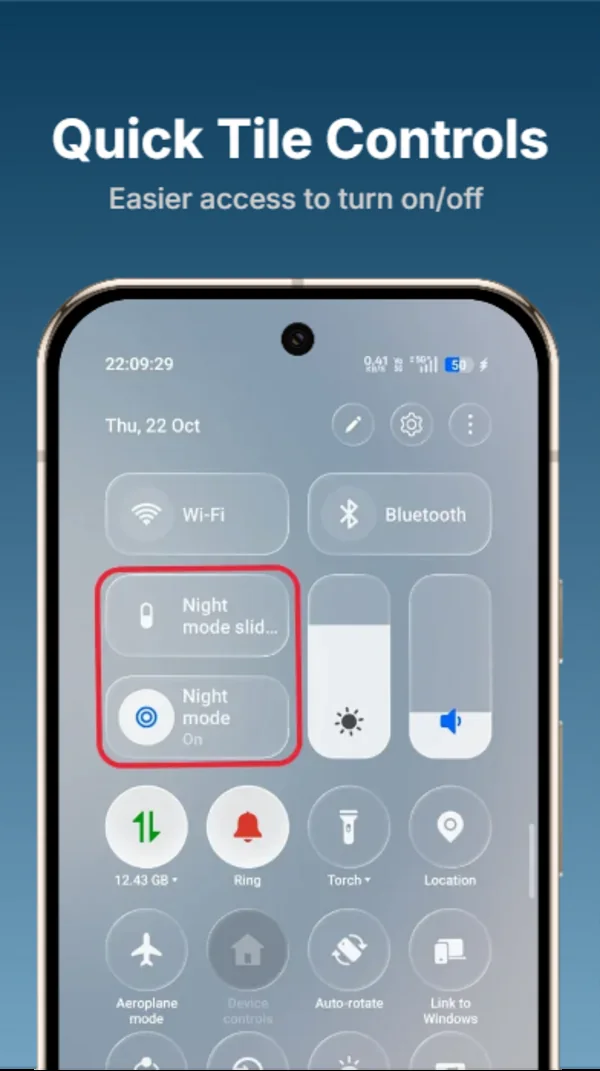
- Screen & Notification Dimmer toggles dimming at your current level and shows it, for example "On · 40%". Free.
- Screen & Notification Dimmer slider opens the volume-style dimming bar over whatever you are doing, the same bar as the edge slider. Pro, or 12 hours with an ad.
To add them: swipe down twice from the top of the screen, tap the edit pencil, then drag "Screen & Notification Dimmer" and "Screen & Notification Dimmer slider" up into your active tiles. On Samsung the edit button sits behind the three-dot menu, and on Xiaomi HyperOS it is the edit icon in the Control Centre.
Will the notification bother me?
It only shows while dimming is on, because Android needs a visible notification to keep the dimming service alive. Other notifications from the app are rare and never break through Do Not Disturb.
The panel you pull down to reach these buttons is bright by default. If that bothers you, see how to dim the notification bar itself.
Frequently asked questions
Can I adjust dimming without opening the app?
Yes. Use the −10 and +10 buttons on the notification, the on/off tile in Quick Settings, or the edge slider.
Why did the dimmer notification disappear?
It only shows while dimming is on. If dimming is on and there is no notification, notifications for the app are probably blocked. Allow them in Android Settings > Apps > Screen & Notification Dimmer > Notifications.
Is there a screen dimmer Quick Settings tile?
Yes. Screen & Notification Dimmer adds an on/off tile (free) and a slider tile (Pro) to Quick Settings.
Related pages
- Edge slider: change the darkness by sliding along the screen edge
- Emergency off: getting your screen back when it is too dark
- Dim the notification bar, status bar and keyboard on Android
- Everything Screen & Notification Dimmer can do
 Get Screen & Notification Dimmer on Google Play
Last updated: 25 November 2026. App facts checked against Screen & Notification Dimmer 8.0.2 (released 21 November 2026).